Getting Started Guide
Install all five add-ons and be ready to use them in under 10 minutes.
What's included in your account
| Add-on | What it does | Where it works | Your Plan |
|---|---|---|---|
 ClassQuest ClassQuest |
Quiz-battle lessons, worksheets, lesson plans and board-pattern exam papers from your curriculum | Google Sheets™ | Annual · All Classes · All Subjects |
 FormFlow Pro FormFlow Pro |
Seat limits, appointment booking, quiz timers, focus guard and 12+ languages inside any Google Form | Google Forms™ | Annual · 1 Year |
 PersonaSheet PersonaSheet |
AI agent that generates a personalised worksheet for every student, dispatches them and auto-grades responses | Google Sheets™ | Annual · 1 Year · 500 Sparks |
 Timetable Genie Timetable Genie |
Clash-free timetables with a substitute planner and exam date sheet generator | Google Sheets™ | Free Forever |
 Doc to Form Quiz Maker Doc to Form Quiz Maker |
Converts any Google Docs question paper into a fully auto-graded Google Forms quiz | Google Docs™ | Free Forever |
Which grades, boards and institutions are supported?
| Add-on | Schools | Colleges | Board or curriculum |
|---|---|---|---|
| PersonaSheet™ |
✔ Yes | ✔ Yes | CBSE, ICSE, Cambridge IGCSE, IB MYP, MOE Malaysia, UK National Curriculum, or any custom curriculum you specify. Any grade, any subject, any language. |
| FormFlow Pro |
✔ Yes | ✔ Yes | Board-agnostic. Works for any subject, grade, institution, or event. |
| Timetable Genie |
✔ Yes | ✔ Yes | Board-agnostic. Works for any school, college, or coaching institute. |
| ClassQuest™ |
✔ Schools only | ✘ Not for college | CBSE, ICSE, Cambridge IGCSE, Cambridge O Level, Cambridge AS & A Level. New boards and subjects added every week. |
| Doc to Form Quiz Maker |
✔ Yes | ✔ Yes | Board-agnostic. Works for any subject, grade, or institution. |
How to install from the Google Workspace Marketplace
All five add-ons are on the Google Workspace Marketplace. Find the direct install link for every add-on on personasheet.com, or use the links in Step 2 below.
- 1Click the install link for the add-on you want.This opens the add-on's listing page on the Google Workspace Marketplace.
- 2Click the blue "Install" button on the listing page.A Google permissions screen appears. Review it and click Allow.
- 3Open the right Google app for that add-on.ClassQuest, PersonaSheet and Timetable Genie → open a Google Sheet. FormFlow Pro → open a Google Form. Doc to Form Quiz Maker → open a Google Doc.
- 4Open the add-on. In Google Sheets and Google Docs (ClassQuest, PersonaSheet, Timetable Genie, Doc to Form Quiz Maker) — choose Extensions from the top menu → select the add-on → click the topmost option, i.e. Activate or Setup. For FormFlow Pro — open any Google Form, click the puzzle piece icon (Extensions) in the top menu → select the add-on → click Open. The add-on's interface window will appear.
- 5Sign in or activate when prompted.Make sure to log in to your same Gmail account with which you registered or purchased the plan. Your plan activates automatically within a few seconds.
Getting started with each add-on
ClassQuest
Annual · All Classes · All Subjects
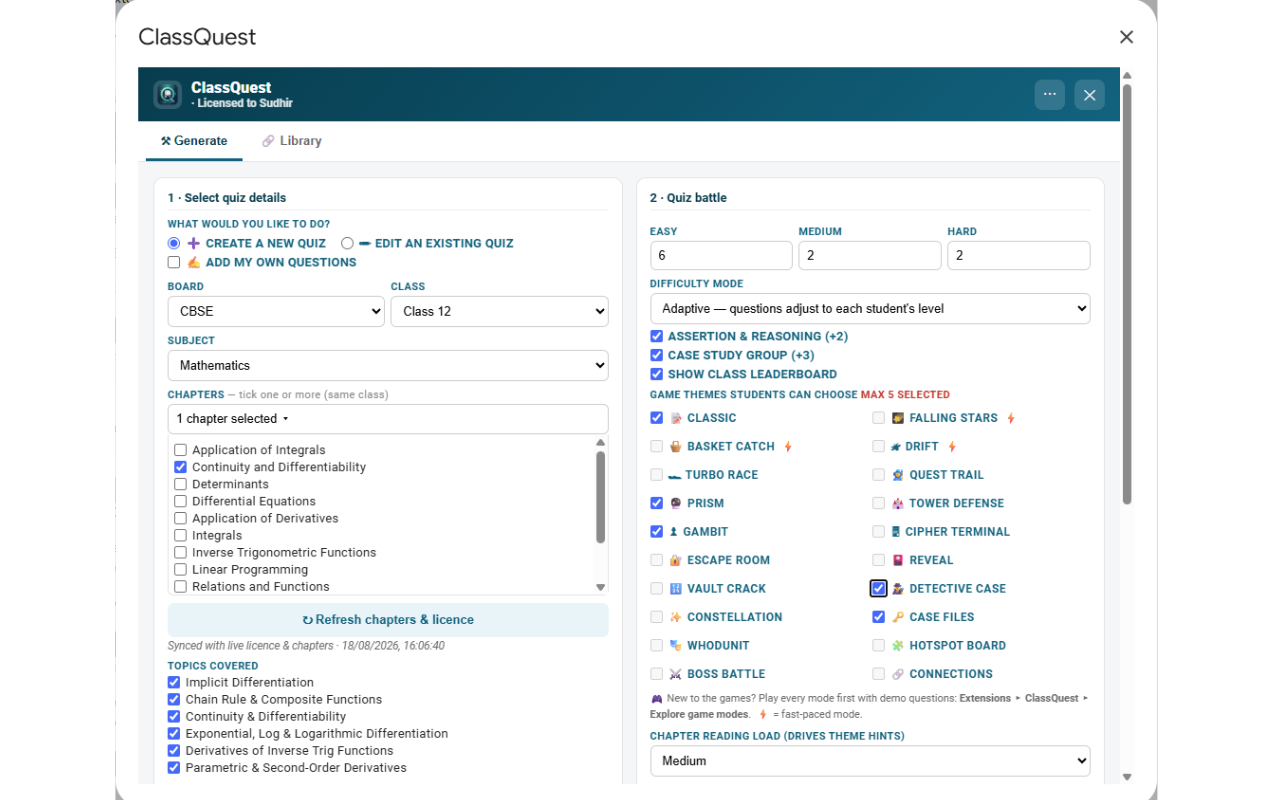
ClassQuest works inside Google Sheets™. Open any Google Sheet, then choose Extensions → ClassQuest → Activate (the topmost option). The ClassQuest interface window opens.
Generate a quiz-battle link
- In the ClassQuest window, click Create Quiz.
- Select your Board, Class, Subject and Chapter.
- Choose one or more game modes.
- Click Generate Link. A unique student link is ready in about 15–20 seconds.
- Copy and share the link via WhatsApp, Google Classroom or email. Students open it in any browser — no app, no login.
Generate a worksheet
- There is no separate worksheet button. Any quiz you generate can be saved as a worksheet in PDF format directly from the result screen.
- You can also generate a worksheet together with a lesson plan inside Lesson Plan Studio — tick the Worksheet artefact before generating.
Generate a lesson plan
- Go to Extensions → ClassQuest → Lesson Plan Studio.
- Select Board, Class, Subject, Chapter, number of periods and duration per period.
- Pick a template: 5E Model, NEP Competency, Bloom's Ladder or Simple/Classic.
- Tick the artefacts to embed: Quiz link, Worksheet, Exit Ticket.
- Click Generate. A Google Doc lesson plan is saved to your Drive under "ClassQuest Lesson Plans".
Generate a question paper
- Go to Extensions → ClassQuest → Exam Studio.
- Select Board, Class, Subject and one or more chapters.
- Choose a paper format (CBSE / School / Plain) and set sections and total marks.
- Click Generate. A Google Doc question paper and a separate marking scheme are created in your Drive.
Track student scores
- Scores are written automatically to the Attempts tab of your Sheet every time a student completes a quiz.
- Go to Extensions → ClassQuest → Mastery Dashboard to see which students need help, chapter-level accuracy and the most-missed questions.
FormFlow Pro
Annual · 1 Year
FormFlow Pro works inside Google Forms™, not Google Sheets. Open any Google Form you have already built, click the puzzle piece icon (Extensions) in the top menu, select FormFlow Pro and click Open. The FormFlow Pro interface window appears.
Activate FormFlow Pro
- Install from the Marketplace link above and approve the permissions screen. FormFlow Pro uses the "current form only" permission — it can see only the one form it is opened in.
- Open any Google Form → puzzle piece icon → FormFlow Pro → Open.
- Accept the consent screen. It saves your name and email, nothing else.
- You are now on the configuration screen. Switch on the features you need and click Save.
- Copy the FormFlow link (not the native Google Form link) and share that with respondents.
Set up seat limits
- In the FormFlow Pro window, go to Seat Limits.
- Set a cap for any option in your form, for example "Morning batch — 20 seats".
- Save, then copy the FormFlow link. Seats count down live and full options close themselves.
Set up a timed test
- Go to Quiz Timer and set a whole-quiz duration or a per-question timer.
- Optionally enable Exam Focus Guard to count tab switches and disable copy-paste.
- Save and share the FormFlow link. The form auto-submits when time ends.
Set up appointment booking
- Go to Booking Calendar.
- Set available dates, time windows, slot length, buffers and capacity per slot.
- Save and share the FormFlow link. Parents see live availability, full slots strike themselves out, and a confirmation email with a calendar invite is sent automatically.
PersonaSheet
Annual · 1 Year · 500 Sparks
PersonaSheet works inside Google Sheets™. Open a Google Sheet, then choose Extensions → PersonaSheet → Initial Setup (the topmost option). This creates the tabs it needs: StudentData, WorksheetRequest and WorksheetTracker.
Add your students
- Go to the StudentData tab.
- Add one row per student: name, class and their interests — favourite sport, hobby, subject.
- The more interests you add, the more personalised each worksheet becomes.
Generate personalised worksheets
- Go to the WorksheetRequest tab and fill one row: subject, topic, grade, and how many MCQs, Short Answers and Word Problems.
- Click Generate Worksheets. The AI agent reads every student profile and builds a unique Google Doc for each one. Watch the live progress as it runs.
- Each worksheet uses 1 Spark from your balance of 500.
Send and auto-grade
- Pick a delivery method per student: Google Classroom™, Email Doc Link, Email PDF, or Drive download. Click Send.
- Set a due date with reminders enabled and PersonaSheet emails each student the day before.
- After students submit, click Grade Worksheets. AI scores each submission against the rubric, posts grades to Classroom, and emails each student a personalised feedback report. You get one consolidated summary.
Timetable Genie
Free Forever
Timetable Genie works inside Google Sheets™. Open a Google Sheet, then choose Extensions → Timetable Genie → Setup (the topmost option). The generate wizard opens.
Build a timetable
- In the wizard, describe your school once: classes, subjects, teachers and periods per week per subject.
- Add your constraints: teacher availability by day, double-period rules, special rooms.
- Click Generate Timetable. A clash-free timetable is placed directly into your Sheet, with six live views and six saved reports available.
- The Chat AI assistant inside the wizard can help if you get stuck on any step.
Find a substitute for an absent teacher
- In the Timetable Genie window, click Substitute Planner.
- Select the absent teacher and the date.
- The add-on lists teachers who have a free period at each of those class times and can cover the slot.
Doc to Form Quiz Maker
Free Forever
Doc to Form Quiz Maker works inside Google Docs™. Open the Google Doc containing your question paper, then choose Extensions → Doc to Form Quiz Maker → Activate (the topmost option). The interface window opens.
Convert a Doc into a Google Form quiz
- Write or paste your question paper in the Doc. Use numbered questions with A/B/C/D options on separate lines for MCQs.
- Open the add-on. It scans the Doc and shows a count of everything it detected: MCQs, short answers, checkboxes, inline images and maths equations.
- Add your answer key for each question to enable auto-grading, per-question marks and explanation feedback.
- Click Generate Form. A Google Form quiz is created and linked to your account.
- Share the Form link with students, or assign it in Google Classroom.
Quick Reference
- Home page and all install links — personasheet.com
- Help & FAQ — personasheet.com/help
- Support — reply to your activation email, or write to dmg@dynamicmindsgroup.com
- ClassQuest, PersonaSheet and Timetable Genie open inside Google Sheets™
- FormFlow Pro opens inside Google Forms™ via the puzzle piece icon
- Doc to Form Quiz Maker opens inside Google Docs™
- Always log in with the same Gmail account you registered or purchased with
- ClassQuest is for schools. PersonaSheet, FormFlow Pro, Timetable Genie and Doc to Form work for schools and colleges equally.